How to Convert Bank Statements to Excel in 2026: The Complete Guide
Learn the fastest ways to convert PDF bank statements from Malaysian and Singaporean banks to Excel spreadsheets. Compare manual entry, copy-paste, and AI-powered OCR methods.
Introduction
Data entry is one of the most tedious and error-prone tasks in accounting. For bookkeepers and accountants in Malaysia and Singapore, manually copying data from PDF bank statements into Excel can consume over 15 hours every week. In 2026, there are several ways to convert these statements into manageable Excel spreadsheets.
This guide covers the three main methods for converting bank statements, helping you choose the best approach for your workflow.
Method 1: The Manual Approach (Copy & Paste)
The traditional method involves opening the PDF on one screen and an Excel sheet on the other, individually copying and pasting or typing out each transaction line.
Pros:
- Free (no software costs).
- High accuracy if done meticulously.
Cons:
- Incredibly slow, especially for multi-page statements.
- Formatting issues are common (e.g., numbers pasting as text, columns merging).
- Prone to human error during long sessions.
Best for: Processing a single page of transactions very rarely.
Method 2: PDF to Excel Converters (Rule-Based)
There are many free and paid tools online that convert standard PDFs into Excel format. These tools read the underlying text layer of a digital PDF and attempt to organize it into rows and columns.
Pros:
- Faster than manual entry.
- Often free or very low cost.
Cons:
- Fails on Scanned Documents: If the statement is a scanned image or photo, these tools cannot read the text.
- Inconsistent Formatting: Bank statements have complex layouts. Standard converters often misalign columns, merge dates with descriptions, or struggle with multi-line transactions.
- Security Risks: Uploading sensitive financial documents to free, untrusted online converters poses a significant data privacy risk.
Best for: Clean, natively digital PDFs with simple table structures where security is not a primary concern.
Method 3: AI-Powered Bank Statement OCR (The 2026 Standard)
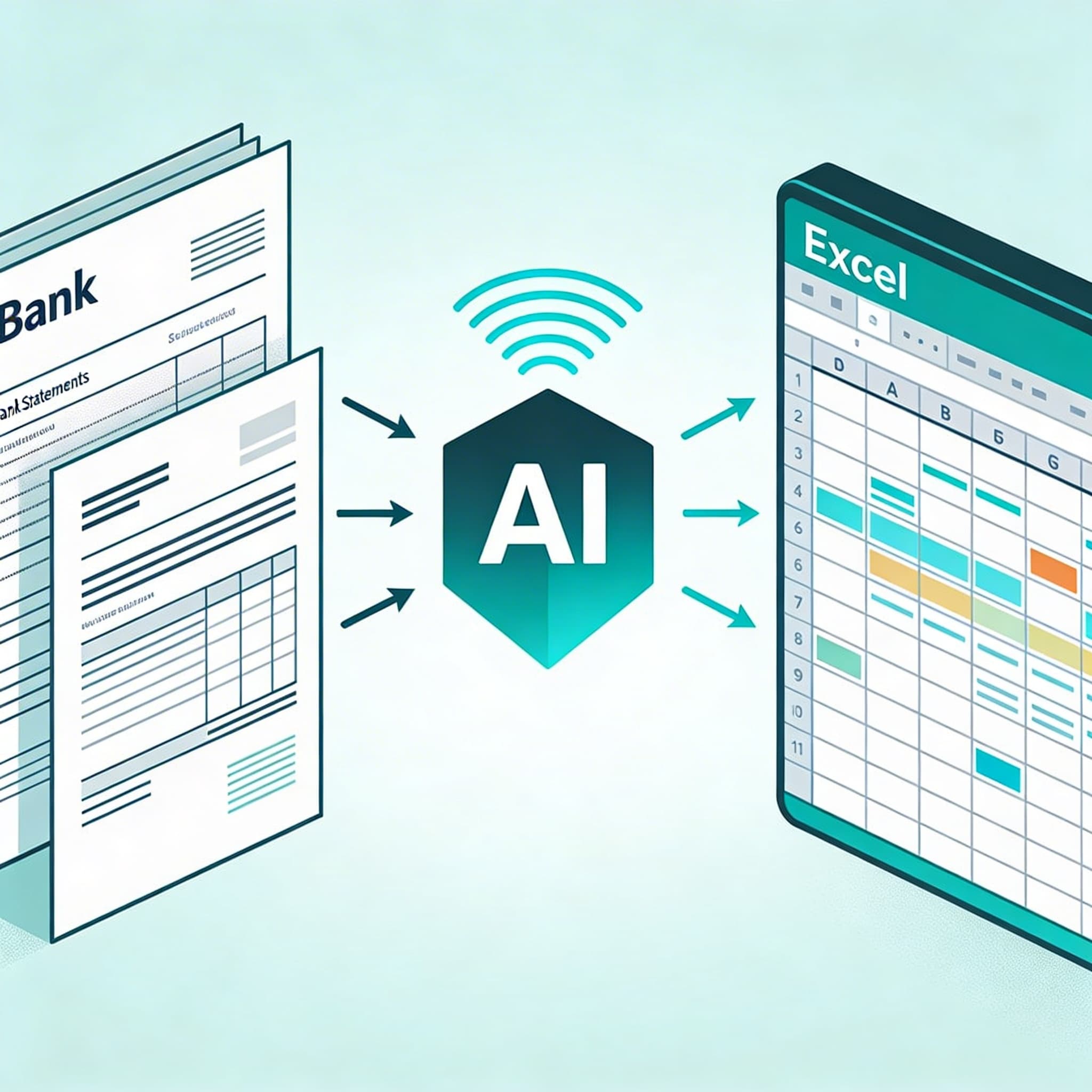
Optical Character Recognition (OCR) combined with Artificial Intelligence is the most advanced method available. Tools like SEA Bank OCR are specifically trained on the complex layouts of Malaysian and Singaporean banks (like Maybank, CIMB, DBS, and OCBC).
How it works:
- You upload the PDF (digital or scanned).
- The AI analyzes the document structure, identifying tables, dates, descriptions, and amounts.
- The system extracts the data and formats it perfectly into a clean Excel or CSV file.
Pros:
- Unmatched Speed: Converts dozens of pages in seconds.
- High Accuracy: AI models understand context, ensuring dates, debits, and credits are placed in the correct columns.
- Handles Scans: Easily processes scanned documents and even photos of statements.
- Secure: Professional tools encrypt data and often process it without human intervention.
Cons:
- Requires a subscription or pay-per-use fee.
Best for: Accountants, bookkeepers, and businesses that regularly process bank statements and value their time and data accuracy.
Conclusion
While manual entry and basic converters might seem appealing, the time wasted fixing formatting errors quickly outweighs the cost savings. In 2026, AI-powered OCR is the obvious choice for converting bank statements to Excel, allowing professionals to focus on high-value advisory work rather than tedious data entry.