Introduction
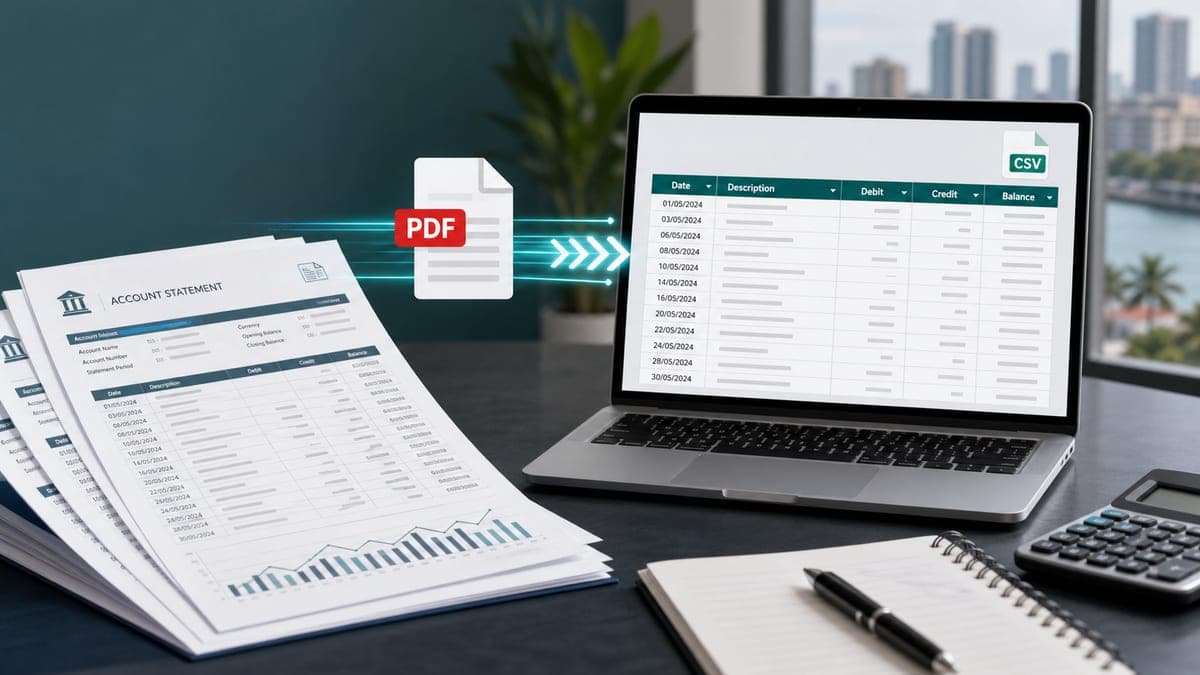
CSV import still matters when bank feeds miss old transactions, a client sends PDF statements, or a firm needs one clean audit trail before reconciliation. Xero and QuickBooks both support CSV bank transaction uploads, but each product expects clean columns, steady date formats, and amounts that spreadsheet software can read as numbers.
For accountants and bookkeepers in Malaysia and Singapore, the hard part starts before the import screen. Maybank, CIMB, Public Bank, DBS, OCBC, and UOB statements use different layouts. Some banks split debit and credit columns. Others use one amount column with DR or CR markers. Scanned statements add another layer because a normal PDF converter cannot read scanned image pages.
This guide shows how to turn PDF bank statements into CSV files that Xero and QuickBooks can import, which columns to keep, and which checks to run before you upload client data.
Target Keyword and Search Intent
Primary keyword: bank statement OCR for CSV import
Secondary keywords:
- PDF bank statement to CSV
- bank statement CSV for Xero
- bank statement CSV for QuickBooks
- convert bank statement PDF to CSV
- OCR bank statements Malaysia
- OCR bank statements Singapore
The search intent is practical. The reader has statement PDFs and wants usable CSV rows for accounting software, not a generic PDF extraction lesson.
CSV Formats Xero and QuickBooks Expect
Xero supports CSV bank statement imports through its manual bank statement import flow. Xero asks you to prepare the CSV, import it, then reconcile the statement lines against transactions in Xero. See Xero Central's guide to importing a CSV bank statement.
QuickBooks Online supports bank transaction uploads from CSV files. Intuit documents two common layouts: a 3-column format with Date, Description, and Amount, and a 4-column format with Date, Description, Credit, and Debit. See Intuit's guide to formatting CSV files for QuickBooks bank transactions.
For bank statement OCR, the 4-column layout gives you the cleanest review path:
| Date | Description | Debit | Credit | Balance | | --- | --- | --- | --- | --- | | 05/06/2026 | Bank charges | 10.00 | | 4,990.00 | | 07/06/2026 | Client payment ABC Sdn Bhd | | 2,500.00 | 7,490.00 |
Keep the Balance column in your working file even if the import screen ignores it. The balance column helps you test extraction accuracy before you send transactions into Xero or QuickBooks.
The Clean CSV Checklist
Use this checklist before every import:
- One transaction per row.
- Date uses one format across the whole file, such as
DD/MM/YYYY. - Description contains the merchant, transfer reference, cheque number, or payment note.
- Debit and credit values sit in separate columns.
- Amount cells contain numbers, not text with
RM,S$, commas, or spaces. - Empty debit or credit cells stay blank, not
0. - Page headers, footers, opening balance rows, and closing balance rows stay out of the transaction list.
- Balance matches the statement after the final transaction.
You can fix many small issues in Excel or Google Sheets, but you should reject files with missing dates, shifted amounts, or broken wrapped descriptions. Those errors affect reconciliation.
Why Generic PDF Converters Fail on Bank Statements
Generic PDF-to-CSV tools treat a statement like a table. Bank statements are not simple tables.
Malaysia and Singapore banks use layouts that break basic extraction:
| Statement pattern | Import problem | | --- | --- | | Wrapped transaction descriptions | One payment turns into two CSV rows. | | DR/CR markers in a single amount column | The converter cannot tell cash in from cash out. | | Repeated headers on each PDF page | Header text appears as fake transactions. | | Scanned or photographed statements | The tool returns blank output or garbled text. | | Currency prefixes and thousand separators | Excel treats amounts as text. | | Value date and posting date on one line | The import file maps the wrong date. |
Bank statement OCR works better because it reads the document layout, detects the bank format, and builds the CSV around accounting fields instead of page coordinates.
Workflow: PDF Statement to CSV Import
1. Download the original bank statement
Use the PDF from online banking when you can. A native PDF keeps text and table edges clear. A scan can still work, but OCR accuracy drops when the image has shadows, blur, or cut-off page edges.
For Malaysian banks, this often means downloading statements from Maybank2u, CIMB Clicks, PBe, RHB Online Banking, HLB Connect, AmOnline, or Bank Islam GO. For Singapore banks, use DBS digibank, OCBC Digital, or UOB TMRW.
2. Convert the PDF with bank-trained OCR
Upload the PDF to SEA Bank OCR and export the result as CSV. The extractor separates dates, descriptions, debits, credits, and balances. It also handles common regional layouts such as CIMB DR/CR amounts and Maybank wrapped descriptions.
If your client gave you Maybank statements, the Maybank statement to CSV guide covers that format in more detail.
3. Review the CSV before import
Open the CSV in Excel or Google Sheets and check the first page, a middle page, and the final page. The final balance should match the PDF statement. If it does, the extraction has captured the transaction sequence in order.
Check negative values with care. Some imports expect separate Debit and Credit columns. Others accept one Amount column where payments use negative values and deposits use positive values. Choose the format that matches your import screen.
4. Prepare the accounting software import
For Xero, use the manual bank statement import flow and map the date, description, and amount columns during upload. For QuickBooks Online, choose the 3-column or 4-column CSV format before upload. Many firms prefer the 4-column format because staff can review cash in and cash out without reading signs.
Keep a copy of the OCR export and the final import file in your client workpapers. That gives you a clear trail from source PDF to reconciled transactions.
Xero CSV Import Notes
Xero works best when your CSV has one date column, one description column, and clean amount fields. If your OCR export has Debit and Credit columns, keep them during review and map the amount fields during import based on Xero's prompt.
Use the Balance column as a control total. Xero may not need the balance for import, but your team needs it for quality control.
Common Xero cleanup checks:
- Remove opening balance and closing balance rows.
- Confirm the bank account currency before import.
- Keep date formats steady across the full file.
- Remove duplicate rows if a client exported overlapping statement periods.
QuickBooks CSV Import Notes
QuickBooks Online accepts a 3-column or 4-column CSV format for bank transactions. The 4-column format uses Date, Description, Credit, and Debit. That maps well to bank statement OCR output because most accounting teams review debit and credit columns before upload.
Common QuickBooks cleanup checks:
- Leave empty debit or credit cells blank.
- Remove the word "amount" from Credit or Debit headers if the import screen rejects it.
- Use one date format across every row.
- Check that descriptions contain merchant names, transfer notes, or useful references.
If QuickBooks rejects the CSV, copy the rows into a new workbook and save a fresh CSV. Spreadsheet formatting can leave hidden characters in copied bank exports.
Quality Control Before Reconciliation
Run these checks before you import client data:
- Match the first transaction date to the PDF.
- Match the final transaction date to the PDF.
- Sum the Debit column and compare it with total withdrawals if the statement provides a total.
- Sum the Credit column and compare it with total deposits if the statement provides a total.
- Recalculate the running balance for a sample section.
- Search for empty descriptions.
- Search for rows where both Debit and Credit contain values.
- Search for duplicate transaction references.
These checks catch the errors that create reconciliation noise later: shifted columns, repeated page headers, and transactions split across two rows.
Recommended Column Template
Start with this working template:
| Column | Keep for review | Import use | | --- | --- | --- | | Date | Yes | Yes | | Description | Yes | Yes | | Debit | Yes | Yes, for 4-column import | | Credit | Yes | Yes, for 4-column import | | Amount | Optional | Yes, for 3-column import | | Balance | Yes | Review field | | Reference | Optional | Useful for audit trails |
If you need an Amount column, create it from Credit minus Debit. Deposits become positive values. Payments become negative values.
Security Notes for Client Bank Statements
Bank statements include account numbers, names, addresses, balances, and transaction history. Treat them as sensitive financial records.
Use tools that encrypt uploads, limit staff access, and delete files after processing. Avoid free anonymous converters for client statements unless you can verify their retention policy and security controls.
SEA Bank OCR focuses on Malaysian and Singaporean bank statement formats and exports CSV, Excel, and JSON. You can start with the free Starter plan and test a small statement before you process recurring client work.
Frequently Asked Questions
Can Xero import a CSV made from a PDF bank statement? Yes. Convert the PDF into clean transaction rows first, then use Xero's manual CSV bank statement import flow.
Can QuickBooks import bank statement CSV files? Yes. QuickBooks Online supports 3-column and 4-column CSV uploads for bank transactions. The 4-column format works well when OCR gives you separate Debit and Credit columns.
Should I import the Balance column? Use the Balance column for review. Some import flows do not need it, but it helps you confirm that OCR captured every transaction in order.
Can OCR handle scanned bank statements? Yes, if the scan is clear. Native PDF statements give better results, but bank-trained OCR can read many scanned statements and photos.
Which banks work best with SEA Bank OCR? SEA Bank OCR is built for regional statement formats, including Maybank, CIMB, Public Bank, RHB, Hong Leong, AmBank, Bank Islam, DBS, OCBC, and UOB.
Conclusion
CSV import saves time when the file is clean before it reaches Xero or QuickBooks. Bank statement OCR gives your team a structured starting point: dates in one column, descriptions in one field, debits and credits separated, and balances available for review.
Start with one client statement, export CSV, run the checks above, then import. Once the balance and sample rows match the PDF, you can process the rest of the month with far less manual cleanup.