Introduction
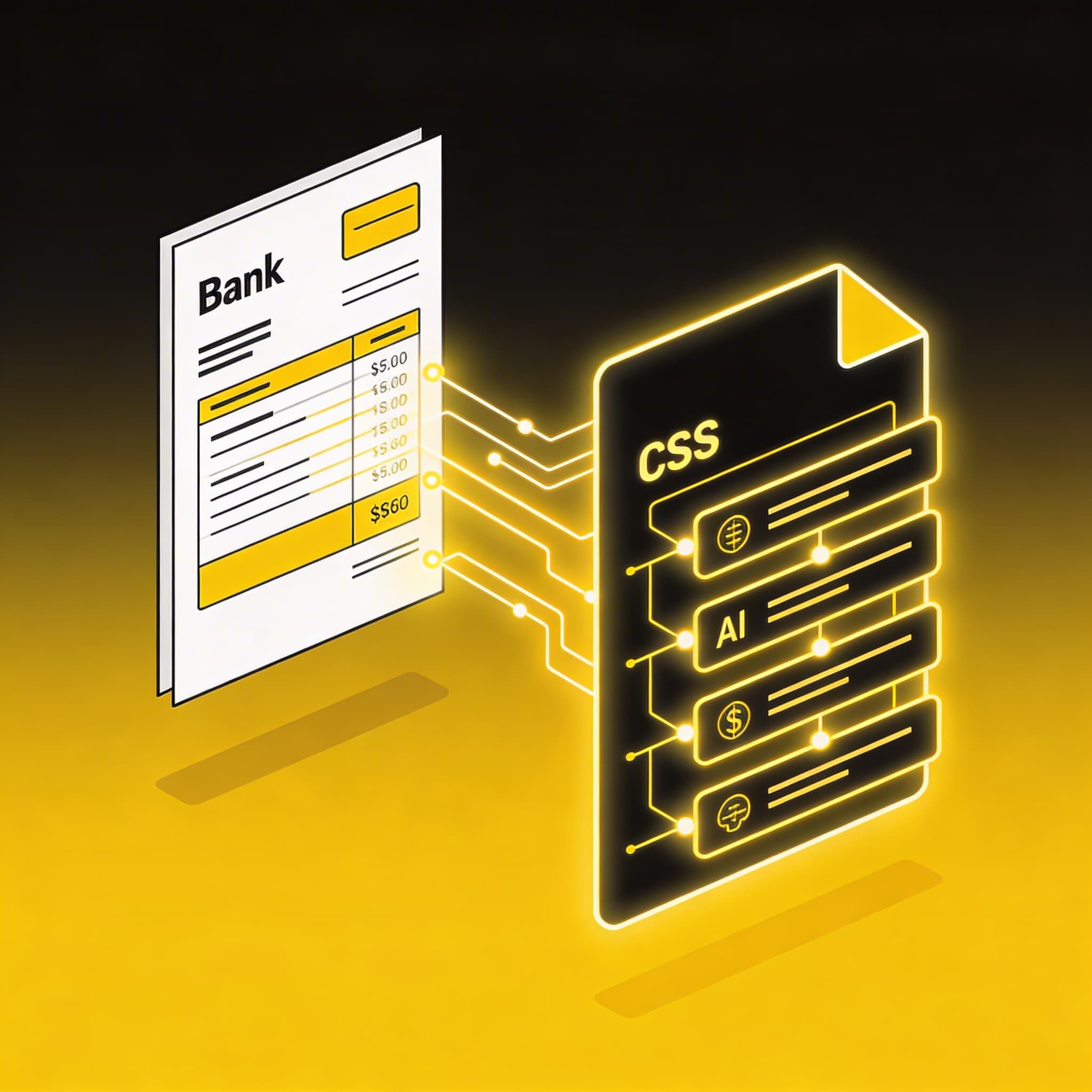
Converting a Maybank statement from PDF to CSV format is a common necessity for many businesses and individuals in Malaysia, whether for tax preparation, accounting software import, or personal budgeting. While Maybank2u offers some export options, dealing with older or complex PDF statements can be a hassle. This step-by-step tutorial will guide you through the process, even if you have multi-page or scanned documents.
Step 1: Downloading Your Statement
Before converting, ensure you have the correct file.
- Log in to your Maybank2u account.
- Navigate to your account details.
- Select the desired statement period.
- Click the option to download the statement as a PDF.
Tip: If possible, always download the natively digital PDF directly from Maybank2u rather than scanning a printed copy. Digital PDFs yield the highest accuracy during conversion.
Step 2: Choosing Your Conversion Method
You have a few options for conversion:
- Manual Entry: Highly inaccurate and time-consuming. Not recommended.
- Basic Online Converters: Good for simple, single-page digital PDFs. They often struggle with multi-page statements or complex table structures.
- Premium OCR Tools (Recommended): The most reliable method, especially for complex or scanned statements. Tools like SEA Bank OCR are specifically designed to handle Maybank formats.
Step 3: Using an OCR Tool for Conversion (The Most Reliable Method)
For this walkthrough, we'll use a dedicated OCR tool because it handles the complexities of Maybank statements effectively.
- Access Your OCR Tool: Go to your chosen bank statement OCR platform (e.g., SEA Bank OCR).
- Upload the Statement: Drag and drop or browse to select the Maybank PDF you downloaded in Step 1.
- Initiate Extraction: Click the 'Extract' or 'Convert' button.
- Review the Data: The AI will process the document. Most premium tools will provide a preview of the extracted data. Review this carefully to ensure dates, descriptions, debits, and credits are correctly categorized.
- Export as CSV: Once you are satisfied with the preview, select the export option and choose CSV (Comma Separated Values).
Step 4: Formatting the CSV for Accounting Software
The exported CSV might require minor formatting before importing it into software like Xero, QuickBooks, or MYOB.
- Open the CSV: Open the exported file in Excel or Google Sheets.
- Check Columns: Ensure the column headers (Date, Description, Amount) match the requirements of your accounting software's import template.
- Format Dates: Verify that the date format is consistent (e.g., DD/MM/YYYY) and matches your software's settings.
- Save as CSV: Save any changes, ensuring the file format remains
.csv.
Troubleshooting
- Multi-Page Statements: If using a basic converter, you might need to convert each page separately and merge the results. An OCR tool handles this automatically.
- Password-Protected PDFs: If your Maybank PDF requires a password to open, you must remove the password using a PDF utility before uploading it for conversion.
Converting Maybank statements to CSV doesn't have to be a headache. By using the right tools, you can automate this tedious task and focus on more important financial analysis.